Appointments | Messages | Tasks | No Show Predictor | Claims by Claims Status | Patient Balance | Post
📖 To learn how to add widgets to your dashboards, refer to Create User Dashboards.
Appointments
The Appointments widget provides a detailed view of your appointments for the day. You can manage appointments directly from the Dashboard.
- Select the Provider or Office tab to switch views
- Filter the appointments by a specific provider, office, or date.
- The widget automatically scrolls to the day's next appointment. Scroll up or down to see previous or future appointments.
| Label/Icon/Checkbox | Description/Field on Appointment Page |
|---|---|
| Hide Past Appointments | Select the checkbox to hide past appointments. |
 |
Edit the appointment. The icon appears when you select an appointment box. |
| Appointment time and duration | Scheduled time and duration |
| Office location | Office |
| Appointment profile | Profile |
| Patient's name | Select the link to open the patient's chart. |
| Vitals Not Taken/Vitals Taken | Select the Vitals Not Taken/Vitals Taken link to open the Appointment page.
Vitals Not Taken: This status shows when the patient's vitals haven't been taken by medical staff or when you select Mark as Undone on the Vitals page. The lock icon  is on the Vitals tab in the image below because the clinical note is locked. is on the Vitals tab in the image below because the clinical note is locked. Vitals Taken: This status shows when you select Mark as Done on the Vitals page.  |
| Exam room | Exam |
| Appointment status | Located below the patient's name. Use the dropdown to change the status.
Status on Appointment page. |
| Note Not Locked/Note Locked | Select the Note Not Locked/Note Locked link to open the clinical note.
Note Not Locked: This status shows when the clinical note hasn't been locked. Note Locked: This status shows when the clinical note has been locked. |
| Insurance and eligibility status | If an appointment has multiple eligibility coverage, you can hover over a tooltip to view additional eligibility coverages and the date it was checked.
 |
| Reason for visit | Reason |
| Border color | Border color on the left side is derived from the color selected for the appointment profile (Schedule > Appointment Profiles). |

Messages
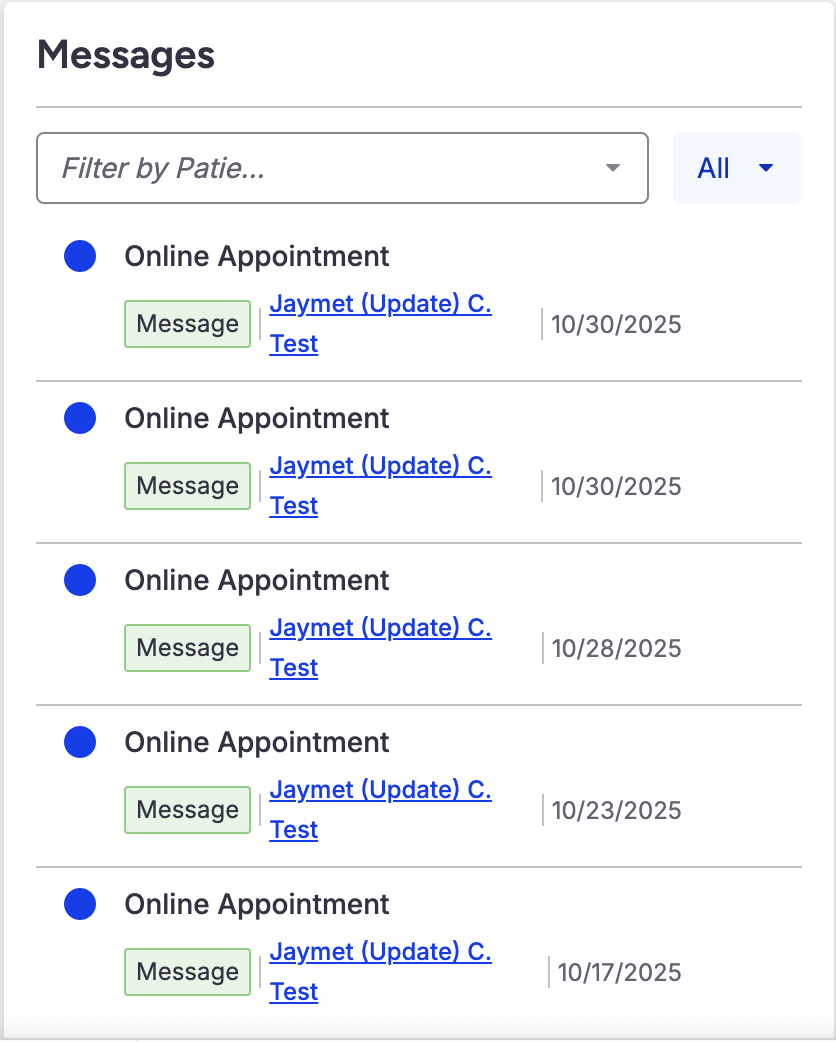
The Messages widget shows all of your incoming messages.
- Filter by patient name.
- Filter by message status by selecting All, Unread, or Read from the dropdown.
- A blue dot indicates an unread message.
- Select the patient name hyperlink to open the patient's chart.
- Select the pencil icon
 to open the Message Center. The icon appears when you hover over a message.
 to open the Message Center. The icon appears when you hover over a message.
Tasks
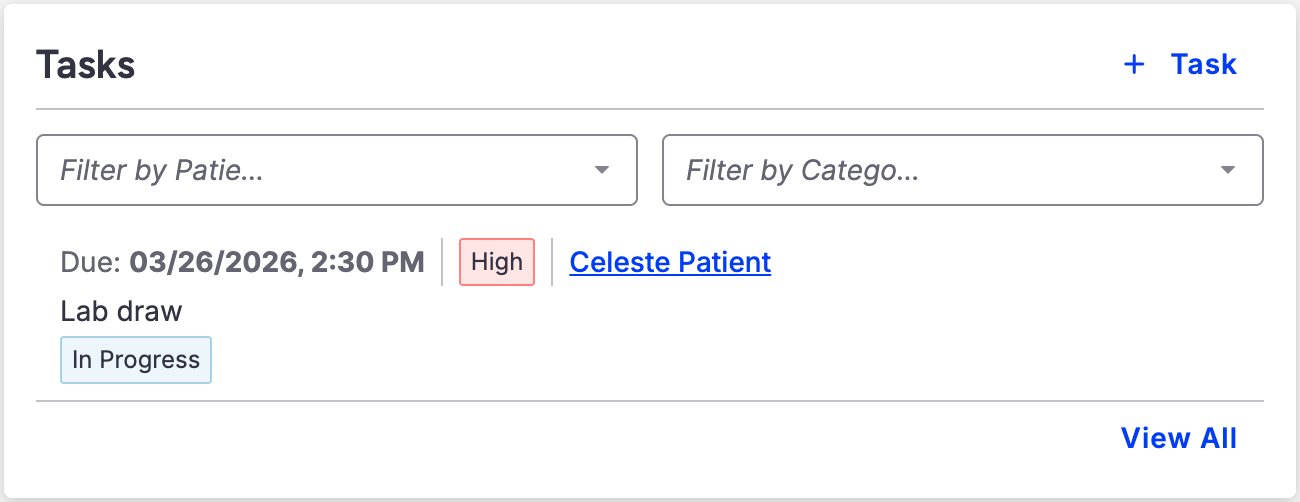
The Tasks widget is a dynamic view of your outstanding tasks that you can update and complete directly from the Dashboard.
- Select Task to create a task.
- Filter by patient or category.
- Select the patient name hyperlink to open the patient's chart.
- Change the task status by selecting Complete, In Progress, On Hold, or Open using the dropdown.
- Overdue tasks are at the top of the list in red.
- Select View All to open the Task Center.
- Select the pencil icon to open the Task Center. The icon appears when you hover over a message.
No Show Predictor
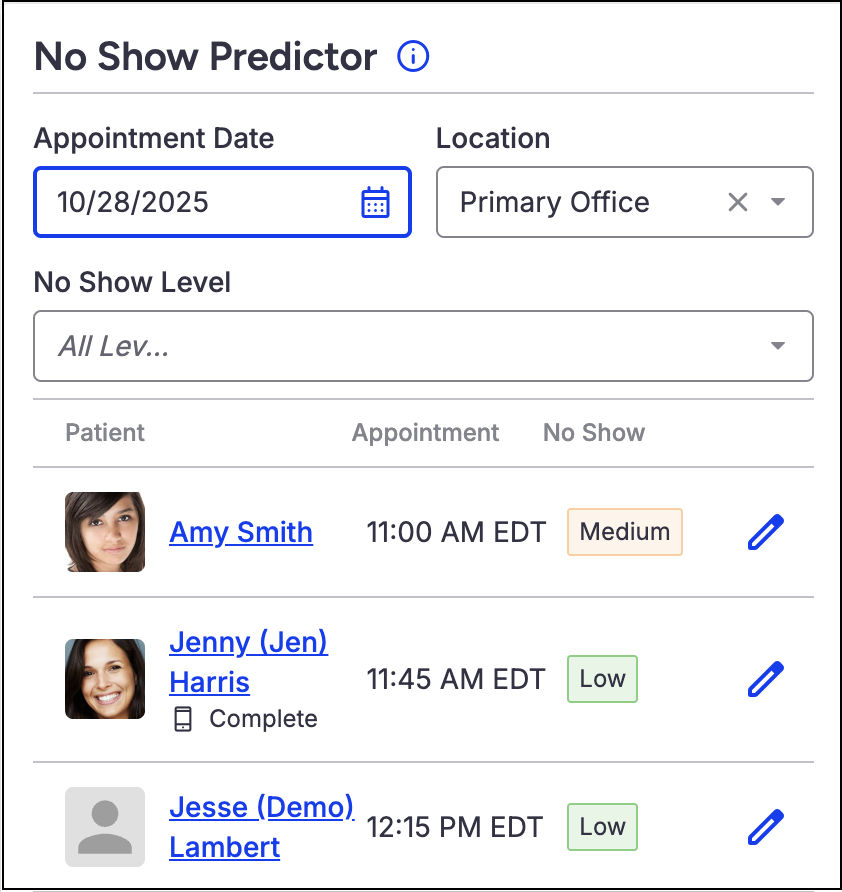
The No Show Predictor displays the no-show risk score for upcoming appointments. Identify high-risk appointments and take proactive action to reduce no-shows.
- Appointments are assigned a low, medium, or high no-show risk score.
- Predictions run overnight for appointments up to seven days in advance.
- Filter by appointment date, location, or no-show level.
- Select the patient name hyperlink to open the patient's chart.
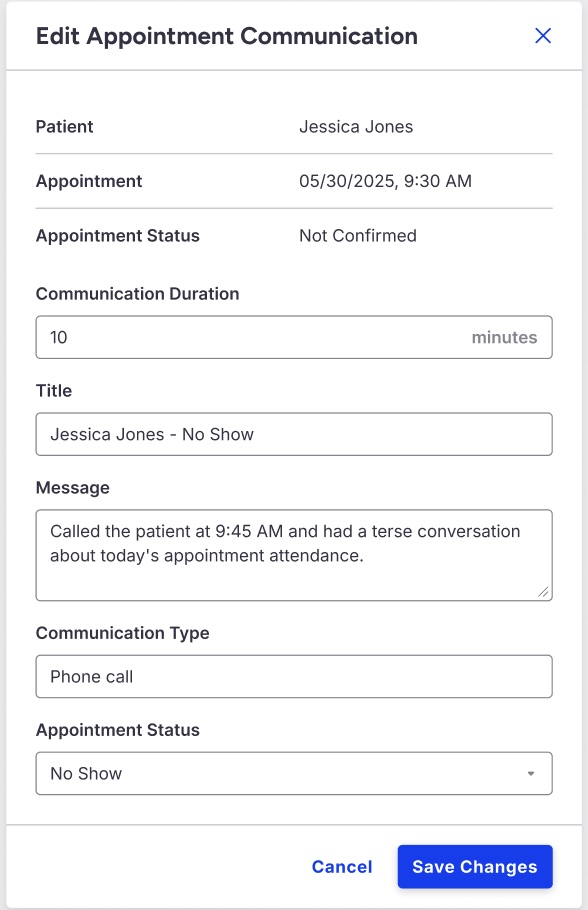
- Select the pencil icon to open the Edit Appointment Communication side panel. Record communication with patients at risk of a no-show.
Claims by Claim Status
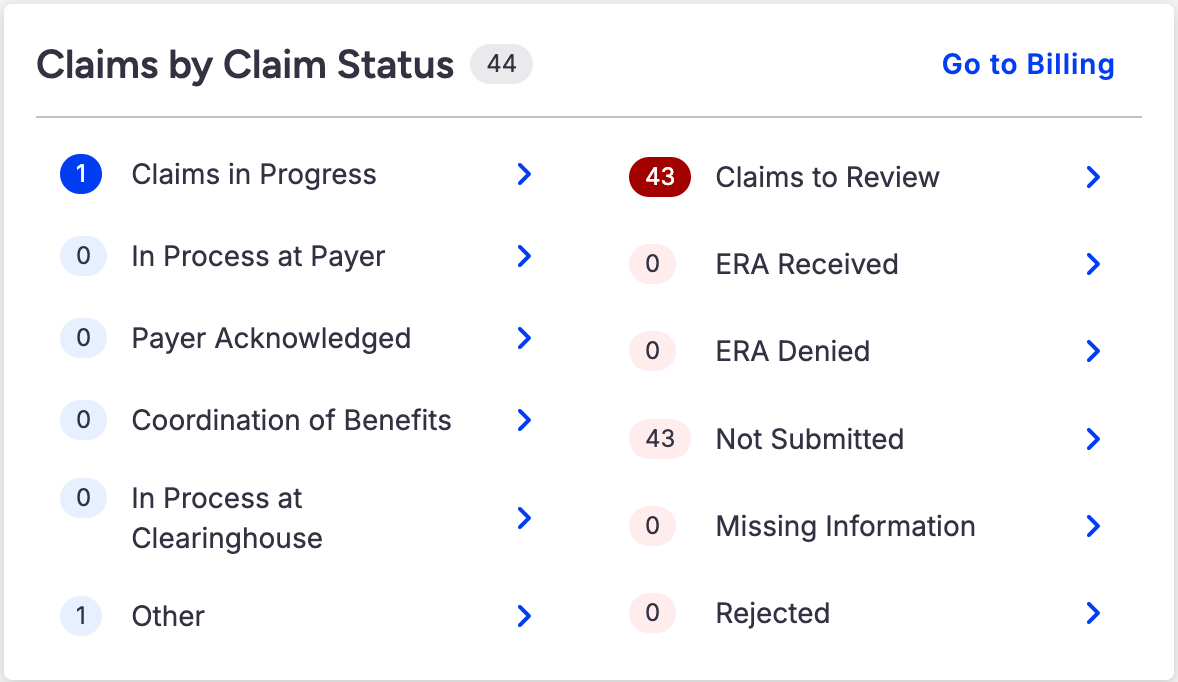
The Claims by Claim Status widget provides a snapshot view of the practice's claims, categorized by status.
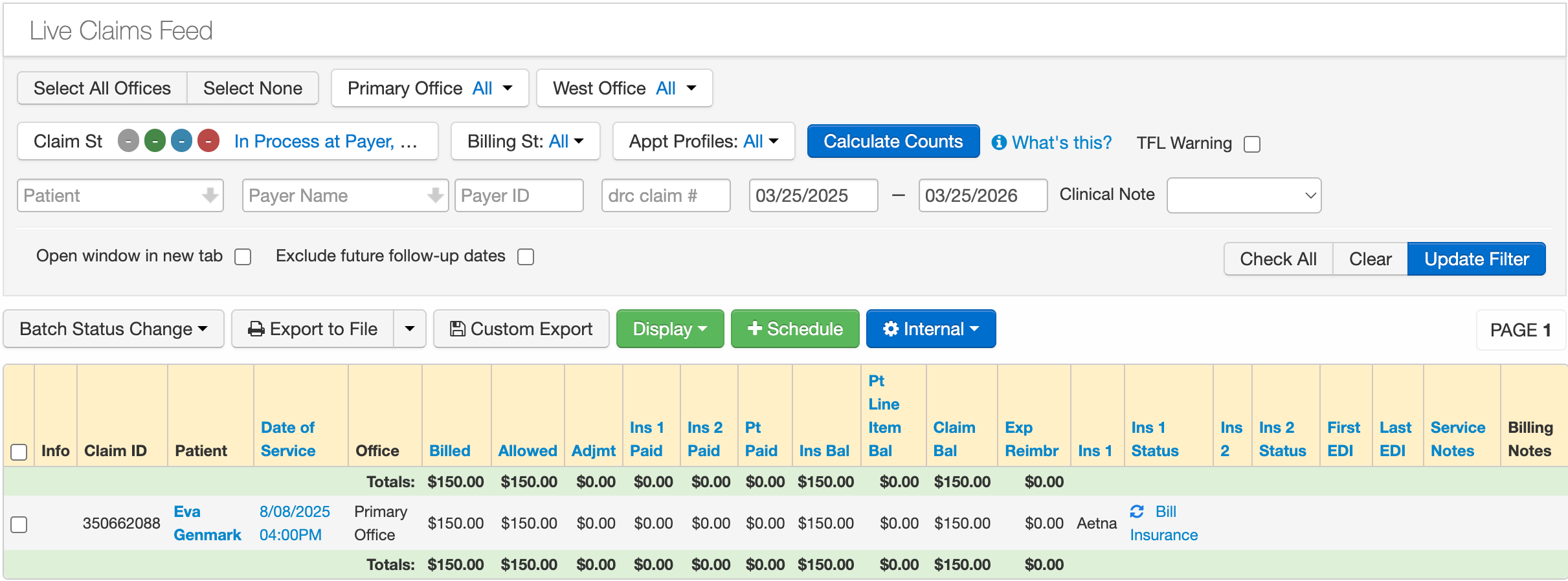
- Select Go to Billing to open the Live Claims Feed page. All claim statuses are shown.
- The widget is divided into two columns — Claims in Progress and Claims to Review.
- The total number of claims appears next to each column header and claim status.
- Select a column heading or claim status to view the claims on the Live Claims Feed page.
Patient Balance
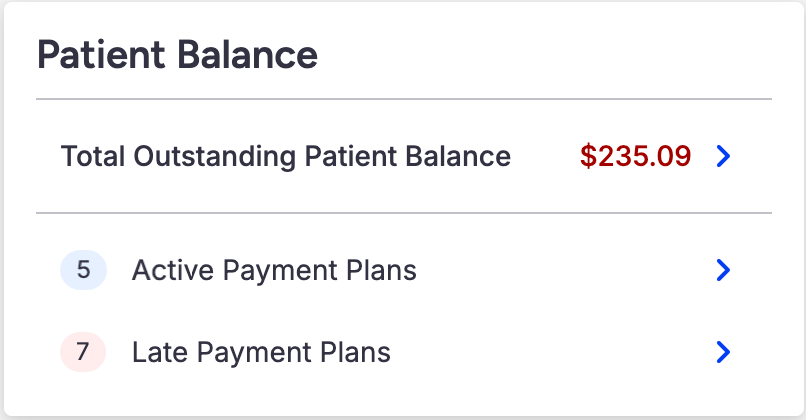
The Patient Balance widget shows the practice's total outstanding patient balance, the number of active payment plans, and the number of late payment plans.
- Select Total Outstanding Patient Balance to open the Live Claims Feed page and view the patient's total balance due.
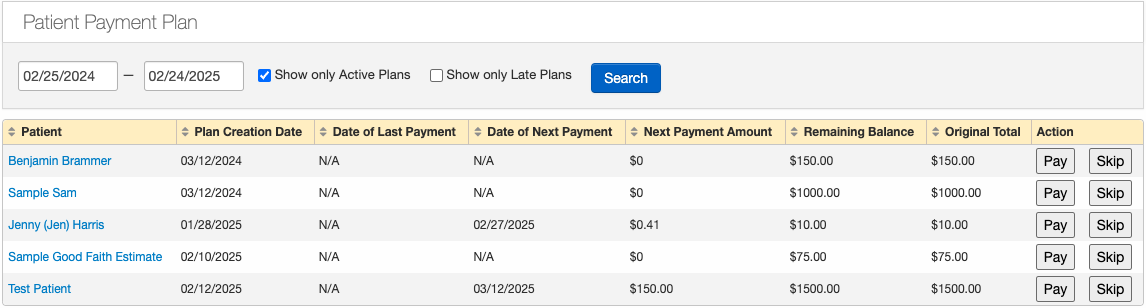
- Select Active Payment Plans or Late Payment Plans to open the Patient Payment Plan report and view the active or late payment plans.
The image below shows the practice's active payment plans.
Post
The Post widget shows the practice's unmatched ERAs, unallocated payments, and patient payments for 30, 60, 90, or 120 days.
- Use the Time Period dropdown to select how many days of data to show.
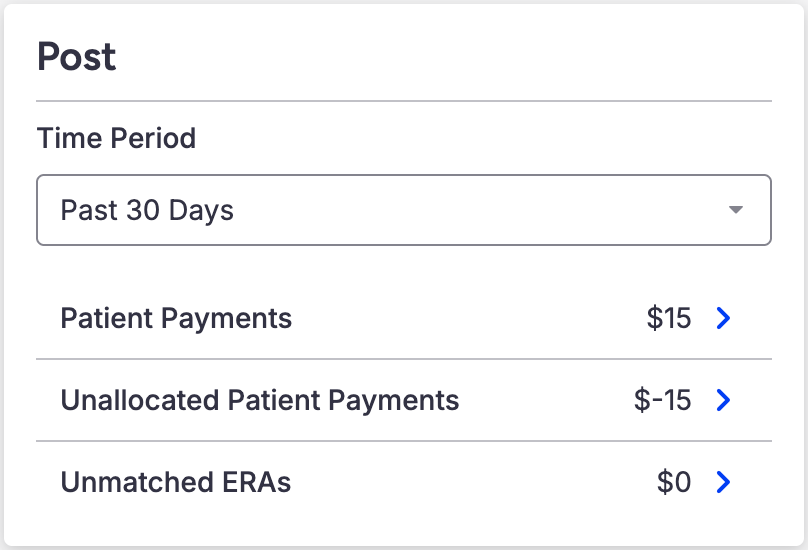
- Select Patient Payments or Unallocated Patient Payments to open the Patient Payments screen and view more details.
- Select Unmatched ERAs to open the Unmatched ERAs screen and view more details.