CCDA version settings | View C-CDA data | C-CDA document components | Clinical data sections
You can export patient data in C-CDA (Consolidated Clinical Document Architecture) format in bulk, and download or view it individually. The data is formatted in XML format and can also be viewed as a PDF when you export it individually.
Clinical notes will only appear in the CCDA file based on the form type selected for the form. Form types MUST be associated with a form for the clinical note generated text to appear in the CCDA file.
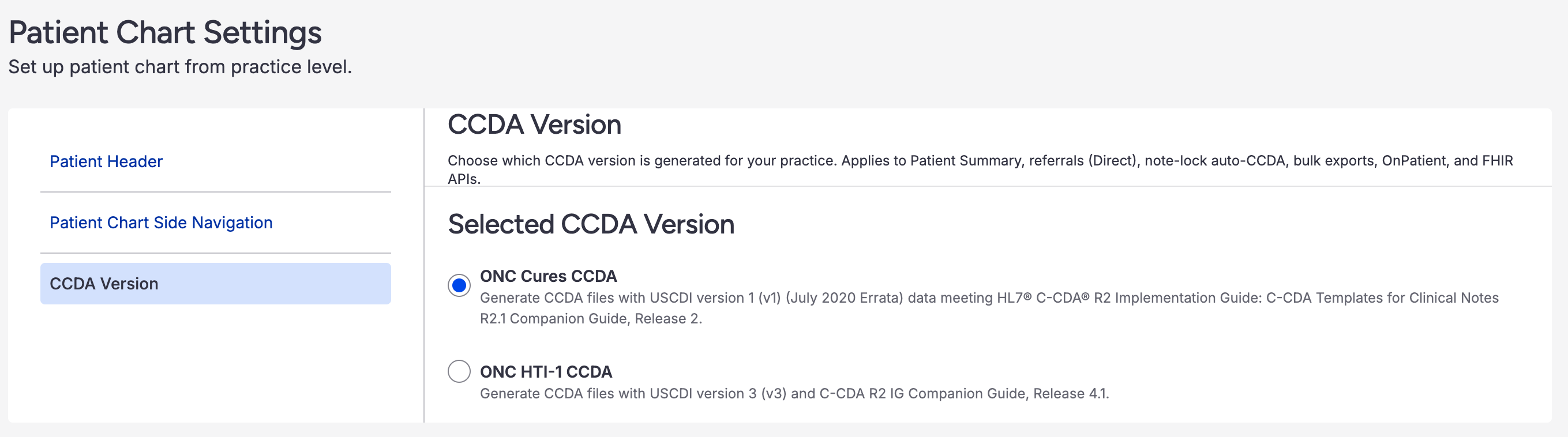
CCDA version settings
DrChrono now supports two CCDA versions that can be configured in your account settings:
- ONC Cures CCDA (Default): Generates CCDA files using the current format
- ONC HTI-1 CCDA: Generates CCDA files with USCDI v3 and HTI-1 ONC updates, including enhanced data elements for interoperability
To change your CCDA version:
- Select Account > Practice Management > Patient Chart Settings > CCDA Version.
- Choose your preferred version
View C-CDA Data
There are two easy ways to view what is included in a C-CDA export from the patient's chart under the Clinical Dashboard section. You can select Download PDF or Display C-CDA XML from the Clinical Summary dropdown.

C-CDA document components
Patient Health Summary
Contains the patient's demographic information as well as the provider, care team members (performer), and practice information. For more information on adding care team members, refer to Adding Care Team Members to a Patient's Chart.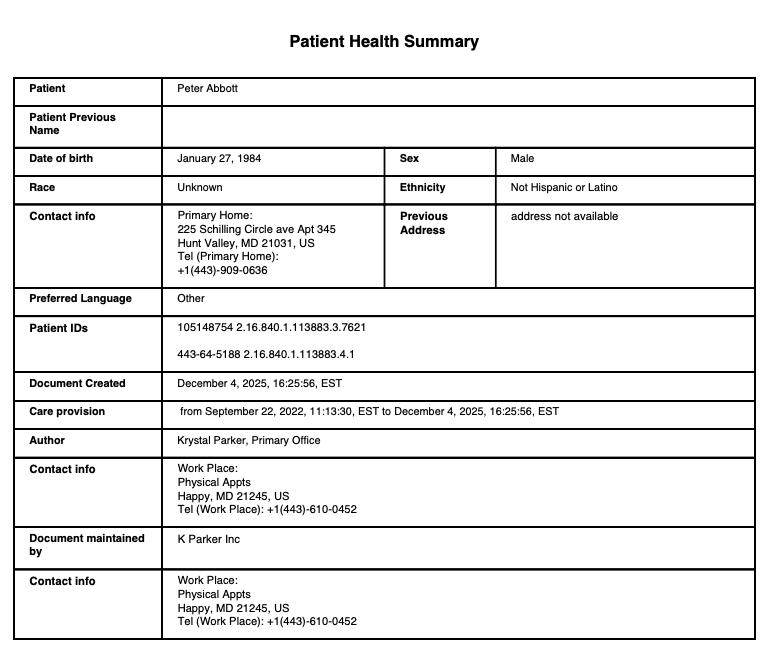
Document header information
The document header includes essential patient identification and administrative information:
Administrative Gender Code: Patient sex is expressed using SNOMED CT codes:
- Male (248153007)
- Female (248152002)
- Other/Unknown (184115007)
Language Communication: Patient's preferred language using ISO 639-2 alpha-3 codes (e.g., "eng" for English)
Provenance Information: Each clinical entry (problems, medications, allergies, procedures, immunizations, SDOH observations) includes author information showing:
- Author name (first and last)
- Author NPI
- Authoring date/time
- Represented organization name
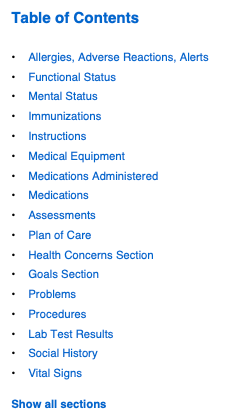
Table of Contents
Table of Contents is a good way to see the data included in the C-CDA file. This information is pulled from the patient chart and clinical documentation. While in the PDF and Display C-CDA XML views, you can click on any section in the Table of Contents to jump to that section.
Clinical data sections
Allergies and Adverse Reactions
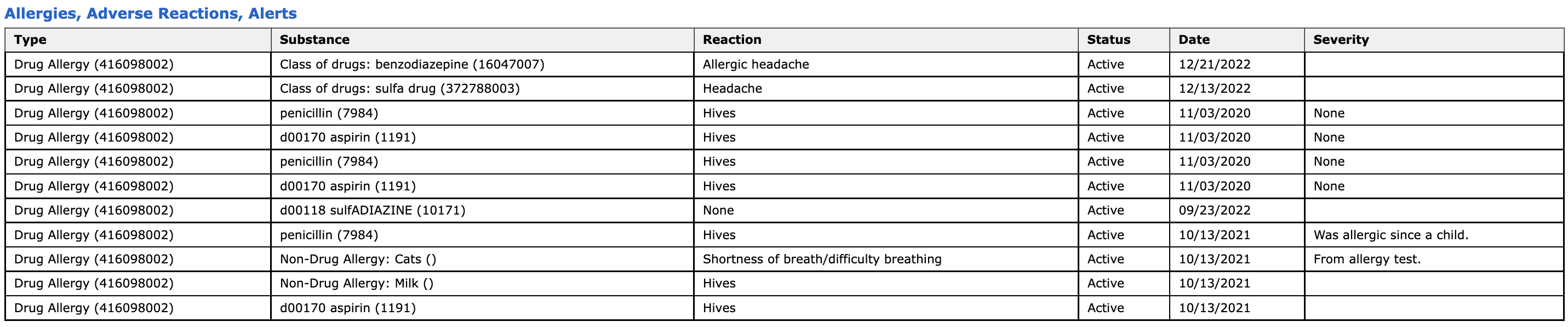
Allergy data can be entered on the web in the patient's chart, in the clinical note, or through the iPad or iPhone EHR app.
Allergy Information Includes:
- Allergen/substance
- Reaction
- Severity (Mild, Moderate, Severe)
- Verification status (Unconfirmed, Confirmed, Refuted, Entered-in-error)
- Active or Inactive status
Encounters
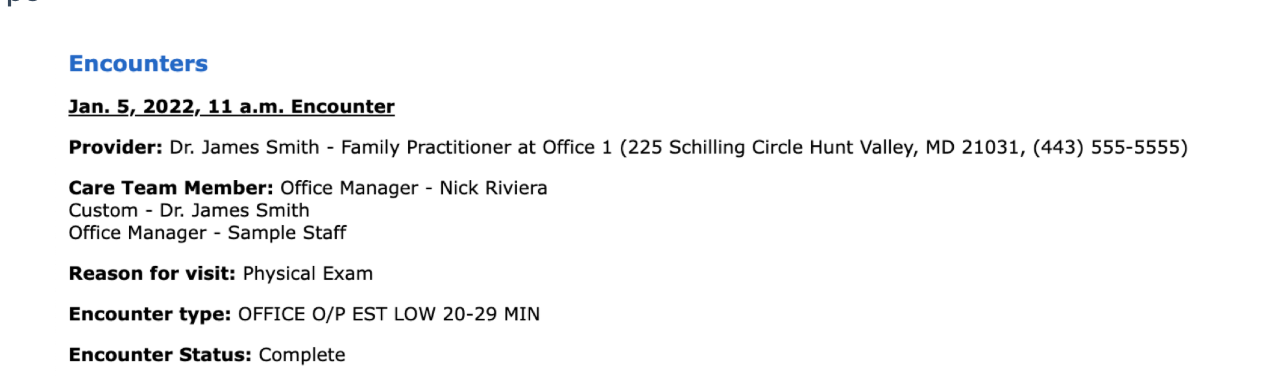
The encounter data includes:
- Date of service and appointment time
- Location
- Provider
- Care team members
- Reason for visit
- Encounter type
The encounter data can be entered in various places in DrChrono on the web or EHR app.
Family History
Family History information can be entered into the patient's chart on the web.
- Go to Family History on the left-side menu.
- Select Add Family Member.
- Once the family member is added, select Add Observation to enter the data.
Functional Status
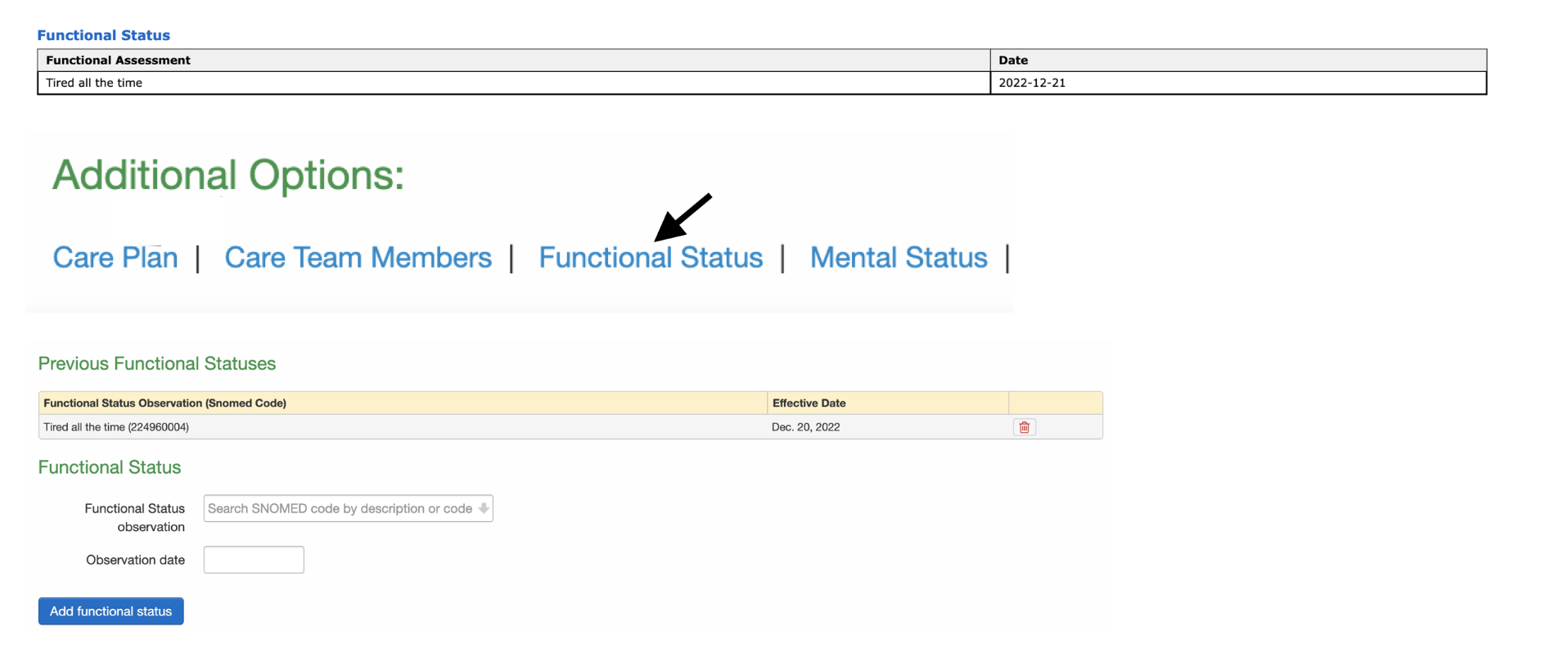
Functional status assessments can be entered in the patient's chart by scrolling down to the Functional Status section under the Clinical Dashboard tab.
Functional status data uses SNOMED CT codes from the Problem List where Problem Type = Functional Status. This information appears in the Functional Status Section of the CCDA, not in the Problem List section.
Mental Status
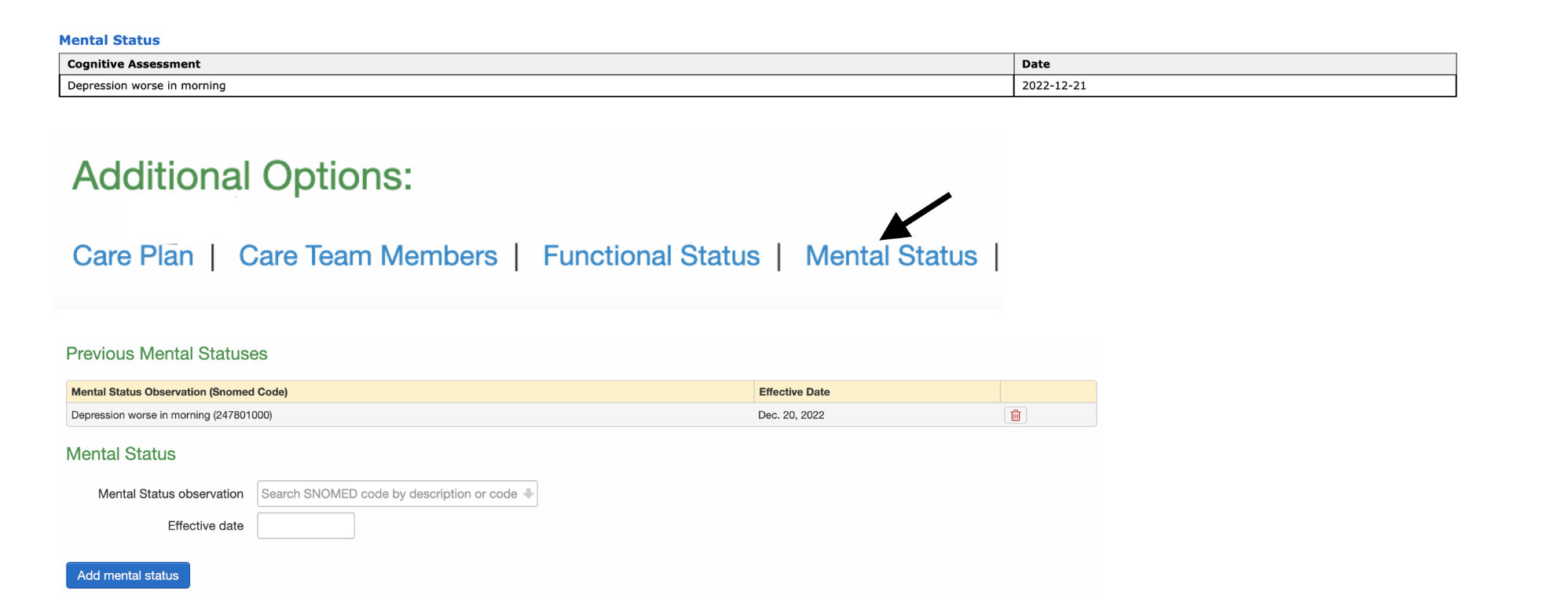
Mental status assessments can be entered in the patient's chart by scrolling down to the Mental Status section under the Clinical Dashboard tab.
Cognitive status data uses SNOMED CT codes from the Problem List where Problem Type = Cognitive Status. This information appears in the Mental Status Section of the CCDA, not in the Problem List section.
Immunizations
Immunization data can be entered into the patient's chart by navigating to the Immunizations tab on the left-side menu. For information on entering immunizations see our article here.
Instructions
Instructions can be entered in the Clinical Dashboard of the patient chart.
- Scroll down to Care Plan under the Additional Options section.
- When entering the instruction details, select Patient Clinical Instructions from the Plan Type menu.
Medical Equipment
Medical Equipment information can be entered into the patient's chart on the web under the Implantable Devices section. Click Add Implantable Device, enter the device information, and Save.
Medications
Medication data can be entered in multiple areas and ways:
- Entered medication manually in the patient's chart or clinical note on the web or EHR app
- Data sync with SureScripts
- Reconciliation data with a C-CDA import
- Sending a prescription through the send eRx feature on the web or EHR app
Medications Administered
Medications Administered data can be entered on the web or EHR app by selecting Administered During Visit from the Order Status dropdown menu when entering or editing medication info.
Insurance Providers
The Insurance Providers section is populated by the primary and secondary insurance information in the patient's chart.
Insurance Information Includes:
- Insurance provider details
- Coverage Type: Insurance plan type (e.g., Medicare, Medicaid, Commercial)
- Coverage Role Type: Patient relationship to subscriber (e.g., Self, Spouse, Child, Other)
Both Coverage Type and Coverage Role Type are captured from the patient's Demographics > Insurance section.
Problems
Problem (ICD-10) data can be entered through various paths on both the web and EHR app versions of DrChrono. Some examples are:
- Patient's chart > Problem List
- Appointment window > Billing > ICD-10 Codes
- iPhone > Patient Menu > Problems
- iPad > Visit > Assessment or Billing Information
Problem Information Includes:
- Problem code (ICD-10)
- Problem description
- Status: Active, Recurrence, Relapse, Inactive, Remission, Resolved
- Verification Status: Unconfirmed, Provisional, Differential, Confirmed, Refuted, Entered-in-error
- Effective dates (start and end dates)
The following problem types are NOT included in the Problem List section of the CCDA:
- Functional Status (appears in Functional Status Section)
- Cognitive Status (appears in Mental Status Section)
- Pregnancy Status (appears in Social History Section)
- Smoking Status (appears in Social History Section)
Procedures
Similar to problems, procedure data (CPT and HCPCS codes) have various points of entry in DrChrono. Some examples include:
- Appointment window > Billing > CPT and/or HCPCS Codes
- Billing > Live Claims Feed > Date of Service > Line Item Transactions
- View Clinical Note > Billing
- iPad/iPhone EHR App > Visit > Billing > CPT and/or HCPCS
Codes for both Problems and Procedures can be entered manually or through billing profiles, the billing pick list, or by adding codes to your clinical forms.
Lab tests and results
Lab test data is entered by sending lab orders or entering the data manually. The data can be found in the patient's chart under Lab Orders.
Lab results can be found in the patient chart under Lab Orders. Data can be entered manually or through an integration with our lab partners.
Lab Result Information Includes:
- Test name (LOINC code)
- Result value
- Unit of measure
- Reference range
- Status
- Effective date/time
Clinical tests and results
Clinical test and result data can be captured using the Clinical Test & Result form element in Form Builder. This data appears in the Results section of the CCDA.
Clinical Test Information Includes:
- Clinical Test Name (LOINC code)
- Clinical Test Result (numeric or text value)
- Date performed
- Customized notes
Assessments
Assessments section includes any information entered into the assessment section of the H&P or SOAP forms. This information can be entered on the web version or through the EHR app for iPad or iPhone.
Social History section
Social History captures important social determinants of health and patient background information.
Smoking status
Data Sources:
- Patient chart under Demographics > Smoking Status (most recent status)
- Active problems in Problem List that match Smoking Status Value Set codes
- Smoking-related SNOMED codes in the billing attachment section of forms
Only the most recent smoking status is included in the CCDA.
Birth sex
Birth sex of the patient based on the sex entered under the Demographics tab.
Pregnancy status
Data sources:
- Active problems in Problem List that match Pregnancy Value Set codes
- Pregnancy-related SNOMED codes in the billing attachment section of forms
Pregnancy status appears in the Social History section using the Pregnancy Observation template, not in the Problem List.
Tribal affiliation
Patient's tribal affiliation can be captured using codes from the TribalEntityUS value set (579 options available).
Data Includes:
- Tribal entity code and name
- Effective date when tribal affiliation was observed
Occupation and occupation industry
Occupation Information Includes:
- Occupation name (SOC code)
- Occupation start date
- Occupation end date (optional)
Occupation Industry Information Includes:
- Industry name (NAICS code)
- Industry start date
- Industry end date (optional)
LOINC assessments
Social Determinants of Health (SDOH) assessments using LOINC codes are included in the Social History section. These structured assessments capture:
- Assessment name (Parent LOINC code)
- Assessment date
- Questions (LOINC codes)
- Answers (coded responses)
- Scores per question (when applicable)
Plan of care section
Plan of care is populated by care plan data entered in the patient's chart by scrolling down to the Care Plan section under the Clinical Dashboard tab.
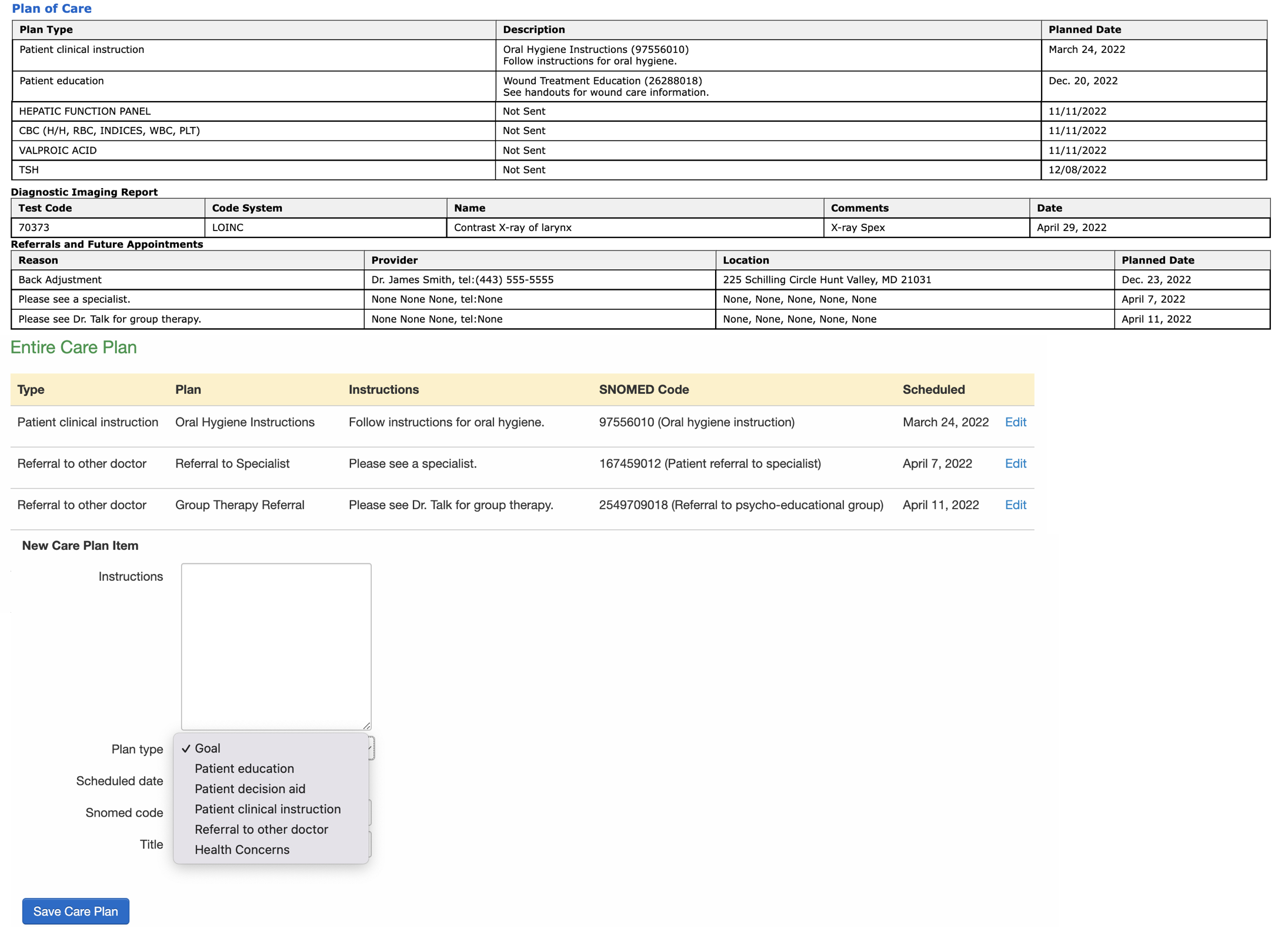
Care Plan
Care Plan Information Includes:
- Goal name and description
- Associated codes (SNOMED or LOINC)
- Target date
- Status (e.g., active, not started)
- Objectives (when applicable)
- Interventions and instructions
- Related problems
Planned procedures
Planned procedures can be captured using the Planned Procedure form element in Form Builder.
Planned Procedure Information Includes:
- Procedure name and code (SNOMED CT or CPT)
- Planned date
- Status
Additional plan of care components
The Plan of Care section also includes:
- Patient Education
- Patient Instructions
- Pending lab tests
- Diagnostic Imaging Reports
- Future Appointments
- Referrals
Diagnostic imaging reports
Diagnostic Imaging Report data can be entered in the patient's chart by selecting the Imaging Orders tab, selecting Add New Order, and entering the details. Imaging orders use LOINC codes to identify the type of imaging study.
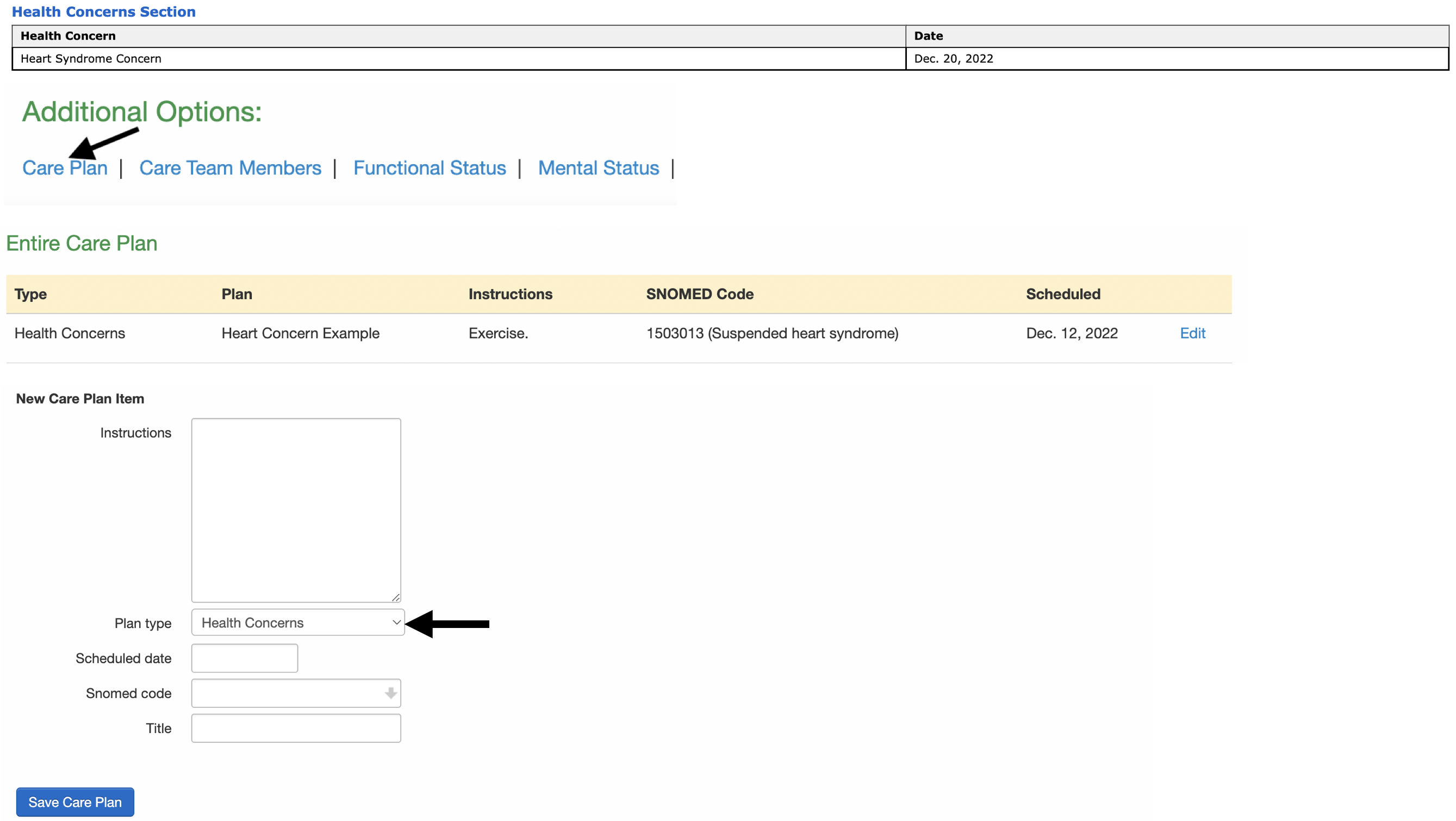
Health concerns
Health concerns data can be entered into the patient's chart by scrolling down to the Care Plan section under the Clinical Dashboard tab.
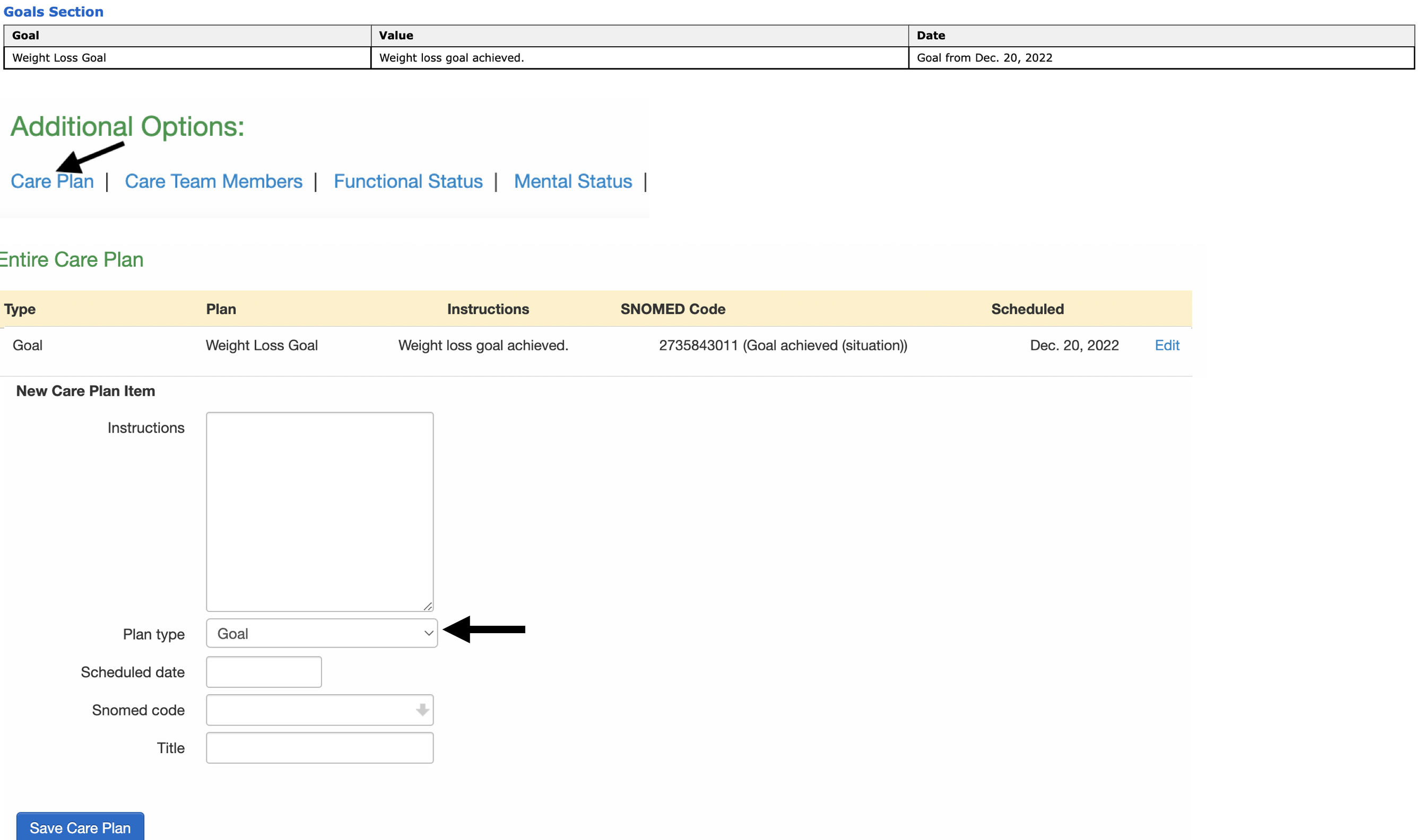
Goals
Goals data can be entered into the patient's chart by scrolling down to the Care Plan section under the Clinical Dashboard tab.
Care Team section
Care Team information captures the collaborative care providers involved in the patient's treatment.
Care Team Member Information Includes:
- Member name (first and last)
- Care team role (e.g., Primary Care Physician, Specialist, Nurse)
- Care team identifier (NPI or other unique ID)
- Member status (Active, Inactive)
- Effective dates
Care team members can be added and managed through the patient's chart. For more information on adding care team members, see our article here.
Vital signs
Vital signs data can be entered in the appointment window, in the clinical note, or through the iPhone or iPad EHR app. If pediatric vital percentiles are used, they will be included in the C-CDA.