Once you have set the parameters for your account's patient payment plans, you can set up an individual patient plan for each patient.
Patient Plan | Skipping a Payment | Make Additional Payment
Individual Patient Plan
- Navigate to your patient's chart and select Demographics and then Payments tab > DrChrono Payments tab

- Under the Patient Payment Plan header, select + New Payment Plan

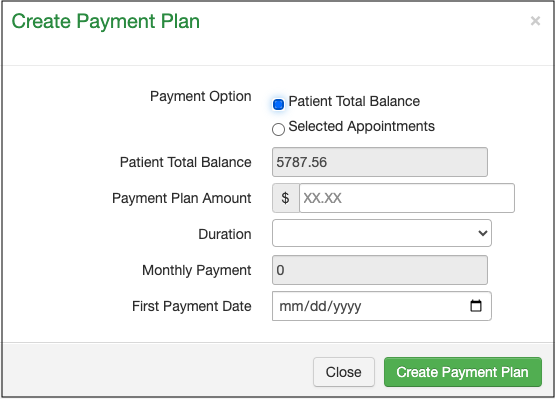
The details window will open. You will have 2 separate options for the payment plan type. One will consider the total patient balance, where you will be able to select the dollar amount to be included in the payment plan. - Using the screenshot below, if you only want to include $3,000 in the payment plan, you would enter that on the "Payment Plan Amount" line.
The other will allow you to select specific appointments to include in the plan.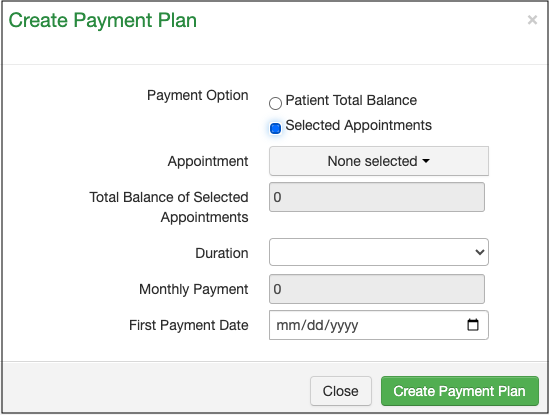
- If you press the down arrow next to "Appointment", you will be shown the appointments in the Balance Due status. You can select which appointments you would like to include in the payment plan.

Payment Option
- Patient Total Balance - This will consider the total patient balance when setting up a payment plan.
- Selected Appointments - This will allow you to select individual appointments to be included in a payment plan.
- Appointment - The drop-down will allow you to select individual appointments to be included in the patient's payment plan.
- Total Balance of Selected Appointments - The total dollar amount to be included in the patient's payment plan.
- Duration - How long will the payment plan last? The available options can be customized by your practice.
- Monthly Payment - The system will calculate this automatically based on the amount due and the plan's duration.
- First Payment Date - The date the first payment will be charged to the card saved on file.
- Enable Auto Payment - This will automatically charge the patient's default credit card on file, the amount due, up to the payment plan amount, on the payment date. This feature will only work if you are utilizing DrChrono Payments as your payment processor.
Please note: if you select "enable auto payment", an additional line will open to allow you to enter the patient's credit card if there is not one saved to the patient's chart. The recurring charge feature will only work if you are utilizing DrChrono Payments as your payment processor.

Examples:
Example #1 - The patient has a $100 balance and wants to pay it off over 4 months. The office staff would enter the payment plan amount ($100) and the duration (4 months). The system would automatically calculate the monthly payment as $25.00.

Example #2 - The patient has a $100 balance and wants to pay it off over 2 months. The office staff would enter the payment plan amount ($100) and the duration (2 months). The system would automatically calculate the monthly payment as $50.00.

Once the patient and office agree on the plan (amount, duration, and card to charge), press Create Payment Plan.
The scheduled payments will appear under the Patient Payment Plan heading.

Skipping a Payment
If your patient is on a monthly payment plan and needs to skip a payment, DrChrono makes it easy to document while keeping the integrity of the payment plan. If your office approves the skipped monthly payment, 1 click within the patient's chart will move the payment to be skipped to the end of the payment period.
Here is how to do it:
- Access your patient's chart and navigate to Demographics > Payments > DrChrono Payments

- Scroll down to the listing of monthly payments under the header Patient Payment Plan and identify the monthly payment the patient is approved to skip.
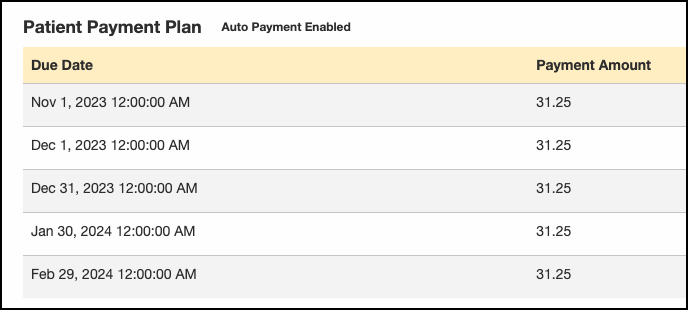
- Follow the row of the payment to be skipped over to the right and find the button labeled Skip.
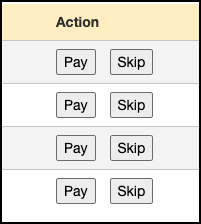
- Make sure you are on the correct payment row to be skipped, and press the Skip button. This will move the payment to the end of the repayment period.
- The skipped payment's status will update to Skipped, and the Action section will gray out. The skipped payment will be added to the end of the repayment period.

Making an additional payment
If your patient is on a monthly payment plan, the system will expect the amount of the payment established when the plan was first created. It is listed in the Payment Amount column in their chart under the DrChrono Payments tab > Patient Payment Plan header.

You can select "Pay" next to another pending payment if they want to make an additional payment.
