Preparing for a Visit | Recording a Patient Visit
Additional resources
- Getting Started with Scribe (Installation)
- Reviewing and Editing a Clinical Note
- Sending Your Note to DrChrono using Scribe
- Best Practices using Scribe
- Using Scribe in DrChrono (Video)

Preparing for a Visit
- Access Your Calendar
- After signing in, Scribe will display your calendar view. When you create a new calendar entry in DrChrono, click "Refresh Schedule" in EverHealth Scribe. The system may take a few moments to sync with Dr.Chrono.
- Enable Microphone Access
- When starting your first visit, Chrome will ask for permission to use your microphone. Select "Allow while visiting this site" to avoid being prompted repeatedly. You can also select your preferred microphone if you have multiple audio input devices.
- Select Documentation Template
- Choose the appropriate template for your visit type (e.g., H&P note, follow-up visit, etc.). This determines how the AI-generated content will be formatted in DrChrono

Recording a Patient Visit
Starting the Scribe
To return to the calendar click the home icon (top left corner) in the Scribe window.
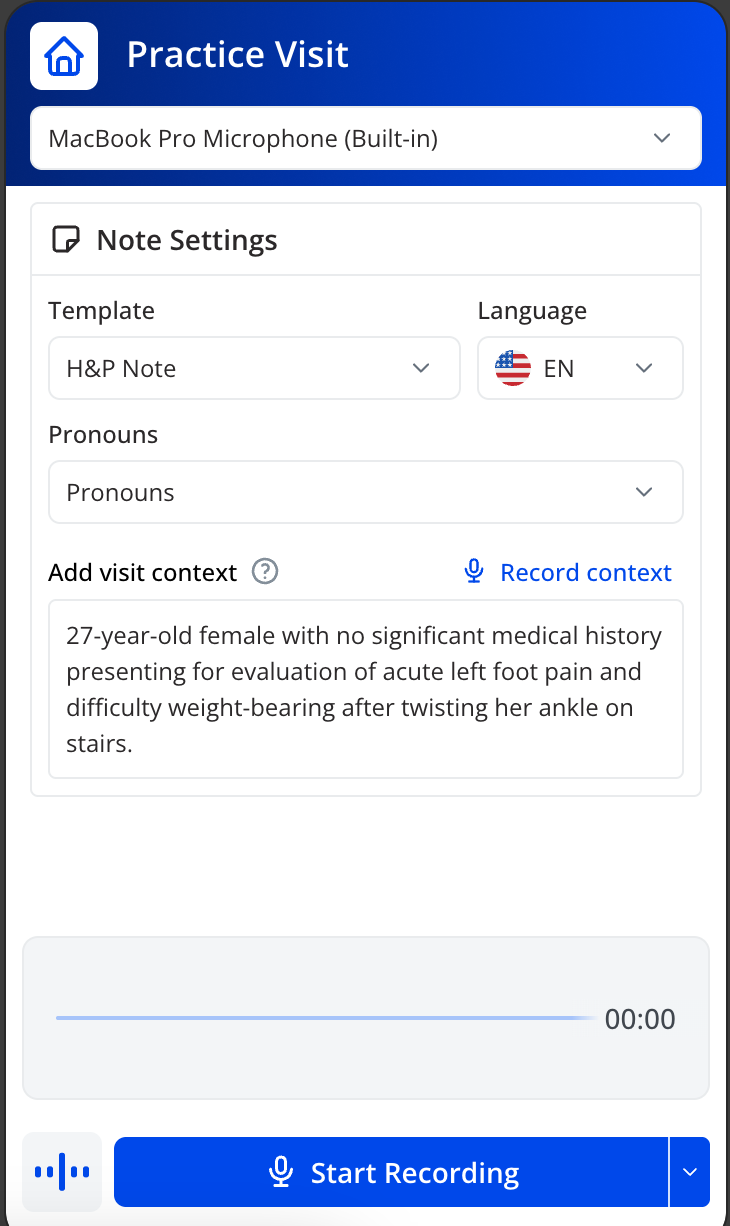 Click on the patient's name in your calendar to open their visit
- (Optional) Add visit context by typing or recording. For example: "Patient is reporting pain in her right pinky toe"
- Click "Start Recording"
- A prompt will appear asking you to obtain patient permission. Dismiss the alert when ready
- Conduct your visit normally Scribe will run in the background, transcribing the conversation
 Click on the patient's name in your calendar to open their visit
Example visit conversation:
- Provider: "Chrissy Bright, how is your pain?"
- Patient: "Oh doctor, I'm really in pain and my right pinky toe hurts."
- Provider: "I see that you have some bruising on your right toe. What would you rate this pain?"
- Patient: "I would rate it as a 7."
- Provider: "We're going to prescribe you 50 mg of ibuprofen. I encourage you to ice it and keep your foot elevated."
Pausing or Ending the Visit
- Click "Pause" to temporarily stop the recording and "Resume" to continue
- When the visit is complete, click "End Scribe". The system will take a few moments to process the recording and generate your clinical note.